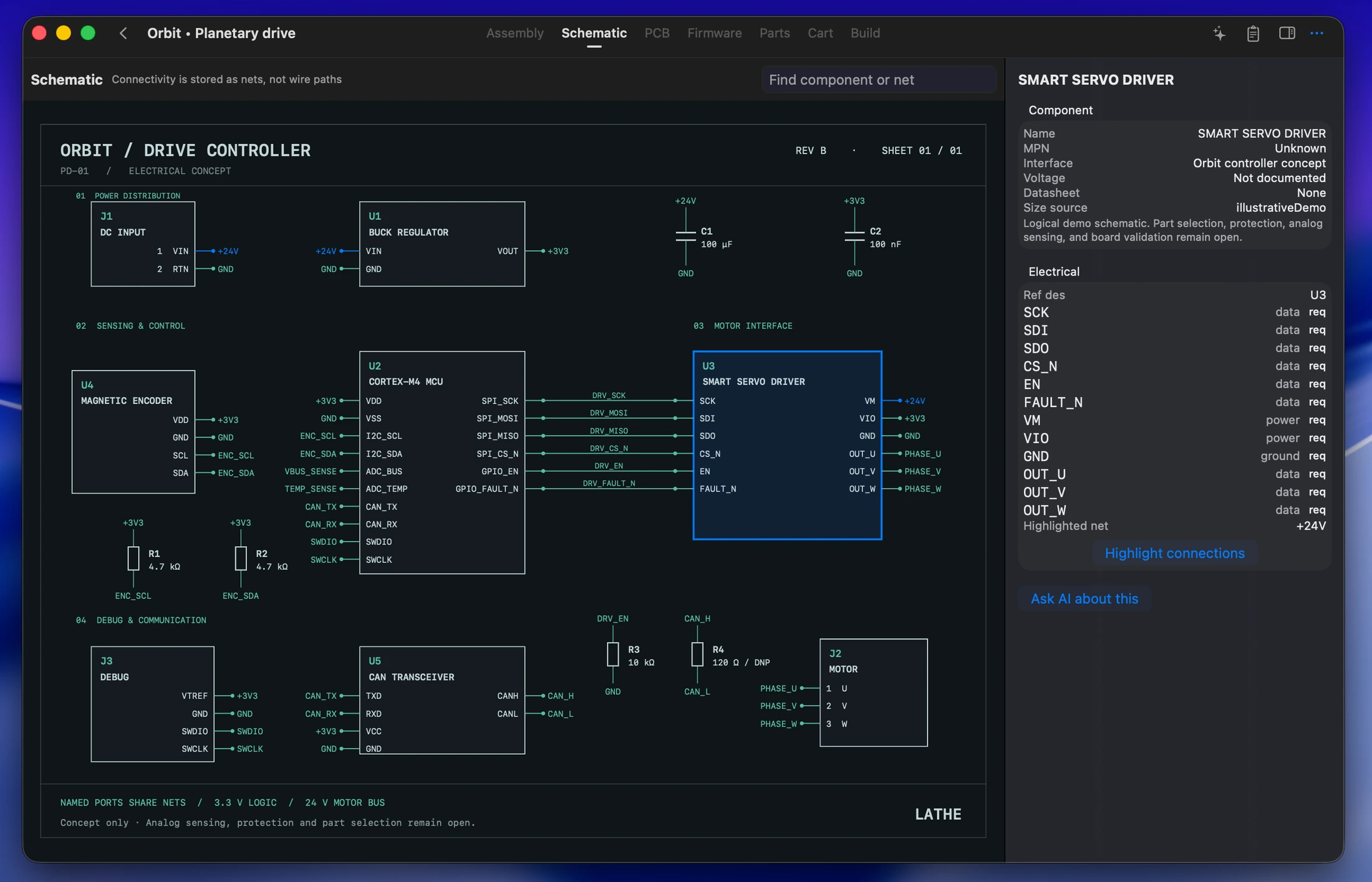
Follow every connection.
Explore the circuit in the schematic workspace.
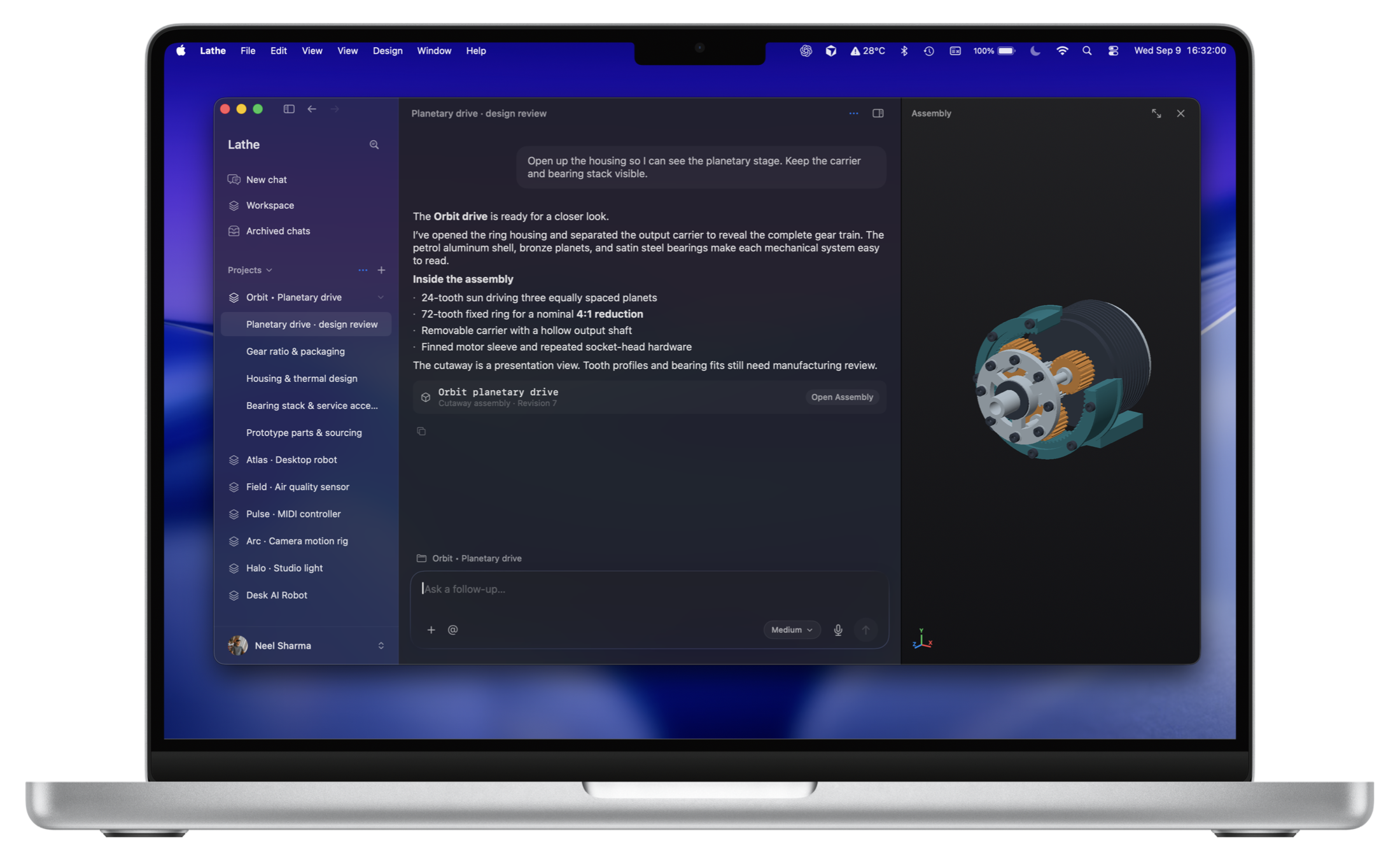
Start with what it should do and any constraints you already know.
Open the assembly, schematic, and firmware alongside the conversation.
Review proposed changes before applying them, then take the files to your next tool.
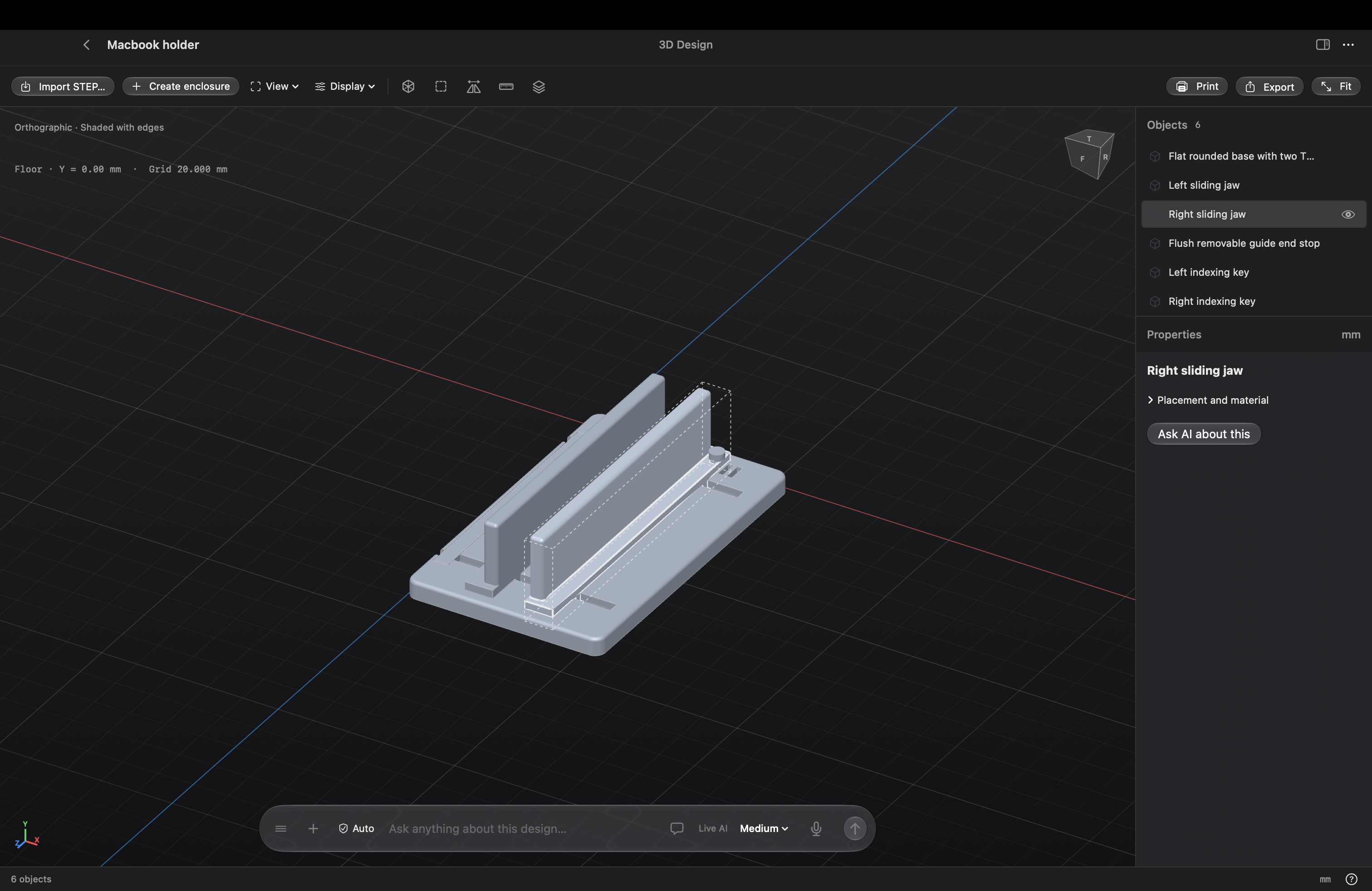
MacBook holder 3D design in Lathe
Open the CAD view to inspect the model, select its parts, and work with the details. The assistant stays close when you need it.
Components, quantities, and cost estimates stay with the design. Know what goes into your next prototype.
Explore the export formats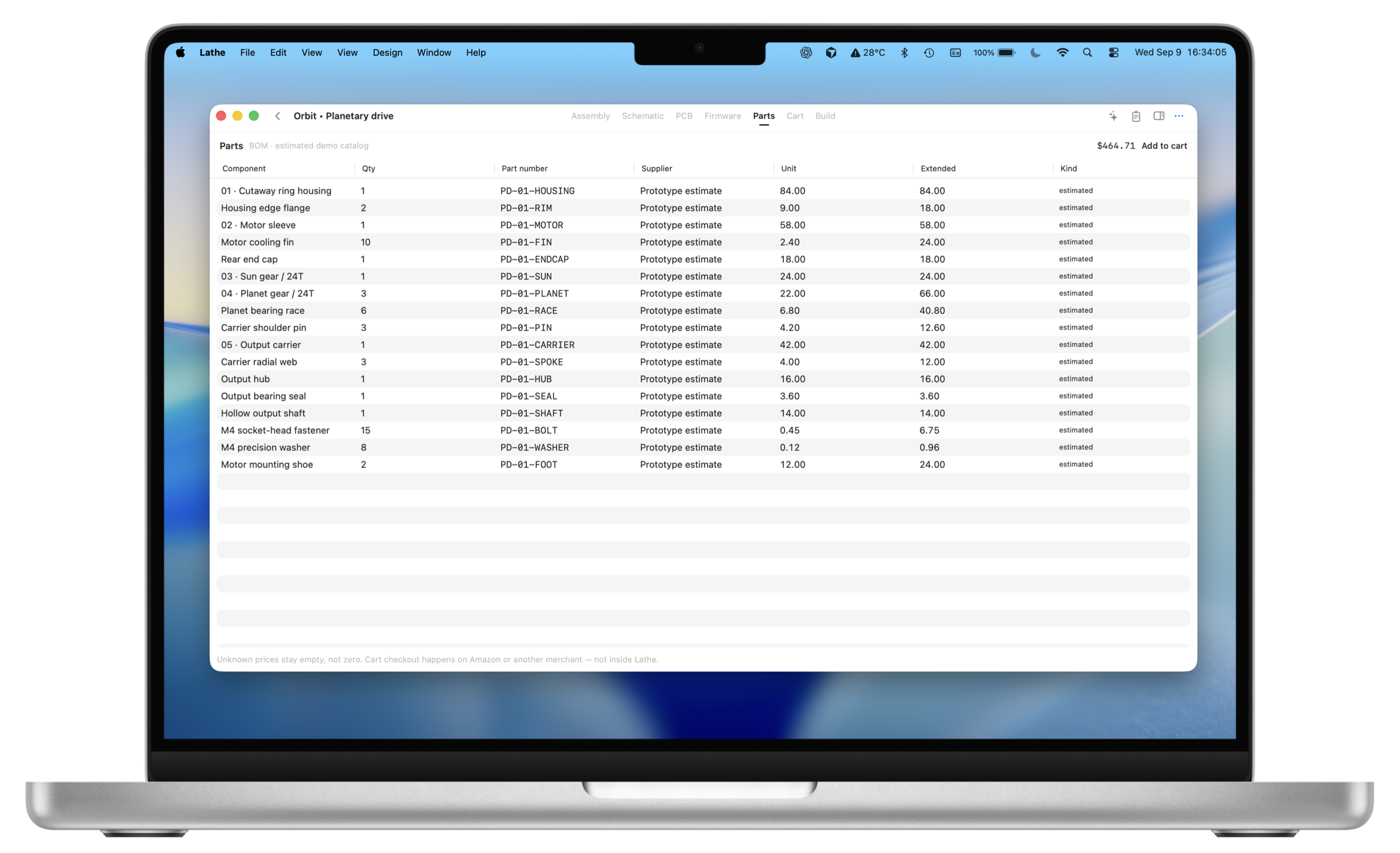
Orbit planetary drive Illustrative cost estimates
Keep the connections and the behavior close to the hardware.
Explore the circuit in the schematic workspace.
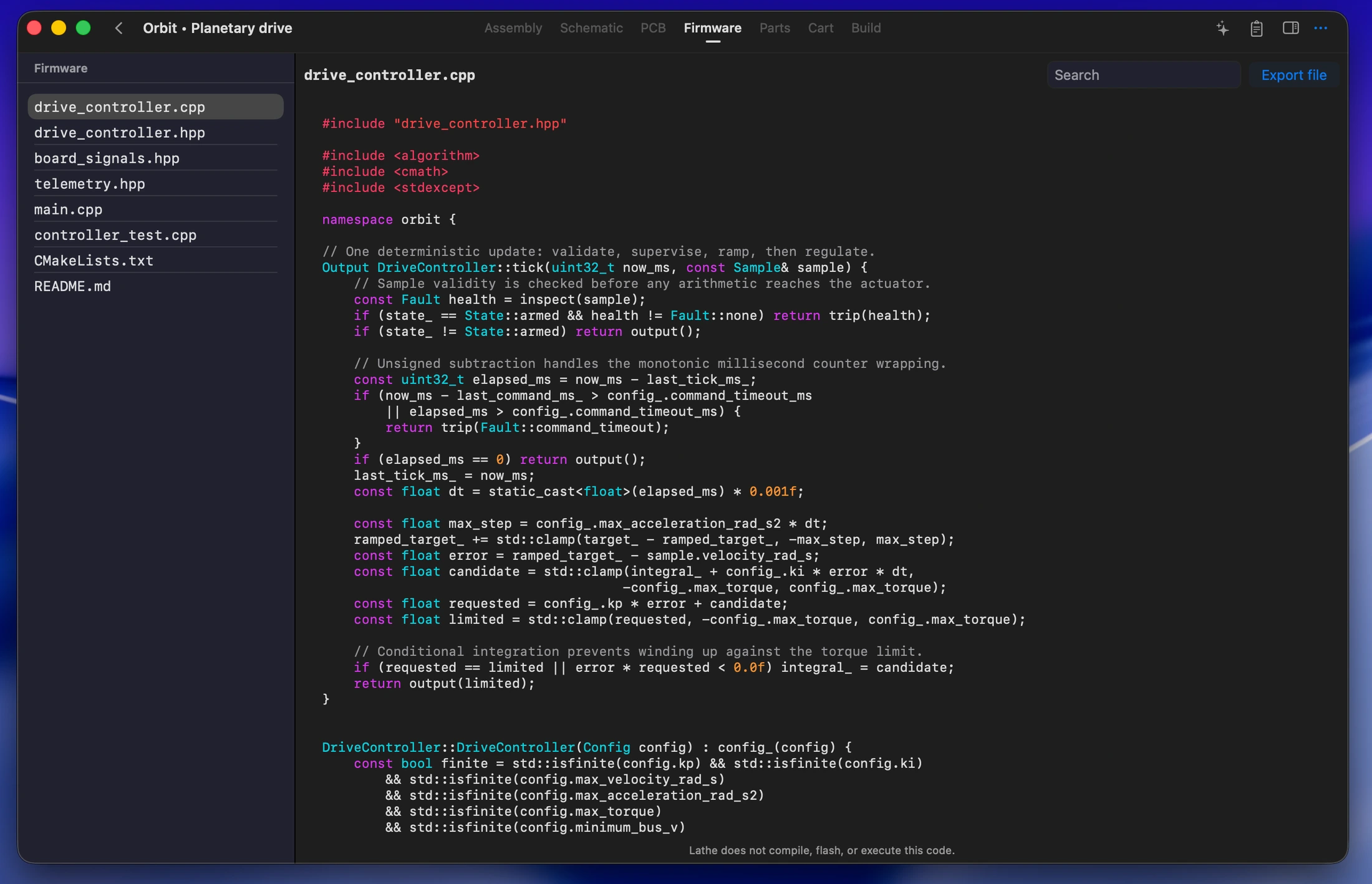
Keep firmware source with the device it belongs to.
A native workspace, from the first conversation to the latest revision.
Projects are saved locally. AI uses relevant project context.
About your dataExport STL, SVG, CSV, and firmware source to continue the build.
Explore exportsThe public Mac download is coming soon. You can create an account now; release details will appear on the download page.
Your project files are saved locally on your Mac. AI features may send relevant project context to the assistant service.
Yes. Export STL models, SVG schematics, CSV parts lists, and firmware source files. Advanced CAD, PCB fabrication, and firmware compilation still use your specialist tools.
The planned Free tier includes the design workspace and a limited AI allowance. Plus and Pro add more capacity. See plan previews.

Start with a conversation. Keep the whole build in one place.
The Mac app is coming soon.